
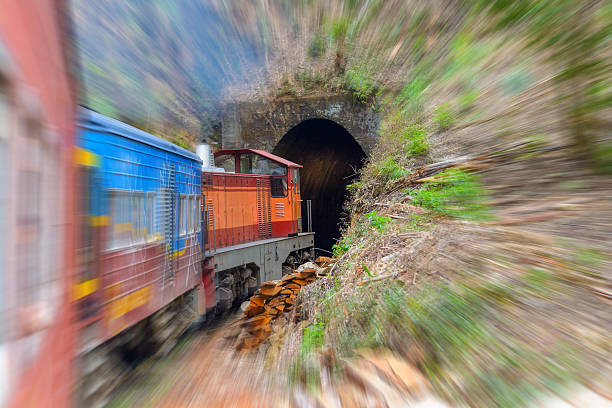


Photographers use a technique to blur the zoom in their photos. This is done by zooming in manually while taking the picture. This effect is difficult to achieve, so Photoshop offers a quick and straightforward way to create it.
To apply the zoom, open your original photo file and create duplicate layers of your Background Layer. Drag your Background layer to Create A New Layer icon at the bottom of the Layers palette. Or press Command-J (PC Control-J) twice. Click on the Eye icon to hide the top layer (Layer 1). Next, change the name of Layer 1 to Zoom.
Select the middle layer (Zoom) to create the zoom blur effect. Next, go to Filter and select Blur. The Radial Blur filter can be applied to this layer (FILTER> BLUR> RADIAL BLUR). Click the radio button “zoom” in the dialogue box. The zoom effect should be intense, so you can play with the slider until the preview box is satisfied.
Next, please turn on the top Layer (Layer 1) and then add a Layer Mask to it. Finally, fill it with Black. Click on the Layer Mask icon and hold the Option Key (PC Alt key). The Layer Mask will be black if you keep the Option/Alt keys.
Now, you can add your background. Choose a Soft Brush (from the Tools Palette) and select the brush size you think will best reveal the background image. You can change the Output channel to white by pressing the X key on your keyboard. Then, you can begin to paint the background image where you want it to appear. You can add any “blur” back by changing the Output channel to Black by pressing X once more. Then, continue painting, but be careful! ).
Zoom blur in Photoshop is easy to use and far more straightforward than the camera. You must play around with the settings to achieve the desired effect. Too much can cause the products to be too harsh, and too little can result in a dull look. You can improve the dynamic range of your photos and create striking sports photos with just a few clicks.